User manual

From zero to your first screen in minutes

A step-by-step guide to create your account, pair your Smart TV and publish your content. No technicians, no USB drives, no hassle.

Before you start

You only need 3 things

LediaSign turns any Smart TV into a professional screen you manage from your browser.

A Smart TV

Running Android TV or Google TV (most modern TVs from Sony, TCL, Hisense, Xiaomi, Philips, etc.).

Internet on the TV

WiFi or wired. It's only used to download your content; after that the screen keeps playing.

A browser

Your dashboard lives at www.lediasign.com. Works from a computer, tablet or phone.

The full path (about 15 minutes the first time)

  1. 1Create your accountfree, no card
  2. 2Install the appon your Smart TV
  3. 3Pair the TV6-character code
  4. 4Upload contentimages and videos
  5. 5Build your playlistorder and duration
  6. 6Scheduletime slots (optional)

Keep your TV remote and 2 or 3 images of your business handy to test. That's all you need to get your first screen running today.

1Step 1

Create your account

2 minutes · free and no credit card

  1. 1Go to www.lediasign.com and click “Create free account”.
  2. 2Choose “Sign up with Google” (fastest) or fill in Name, Email and Password.
  3. 3Accept the Terms of Service and press “Create account”.
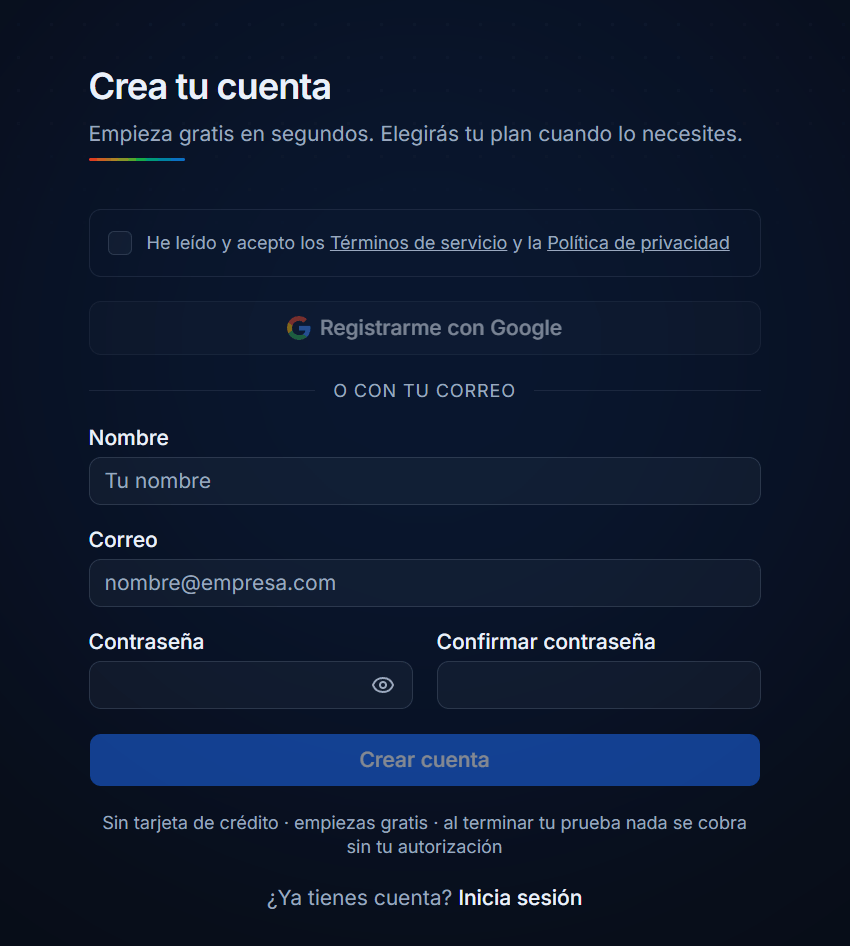
Create your account

Ready when: You reach your dashboard and see the welcome message.
2Step 2

Install the app on your Smart TV

3 minutes · done once per TV

Choose your system
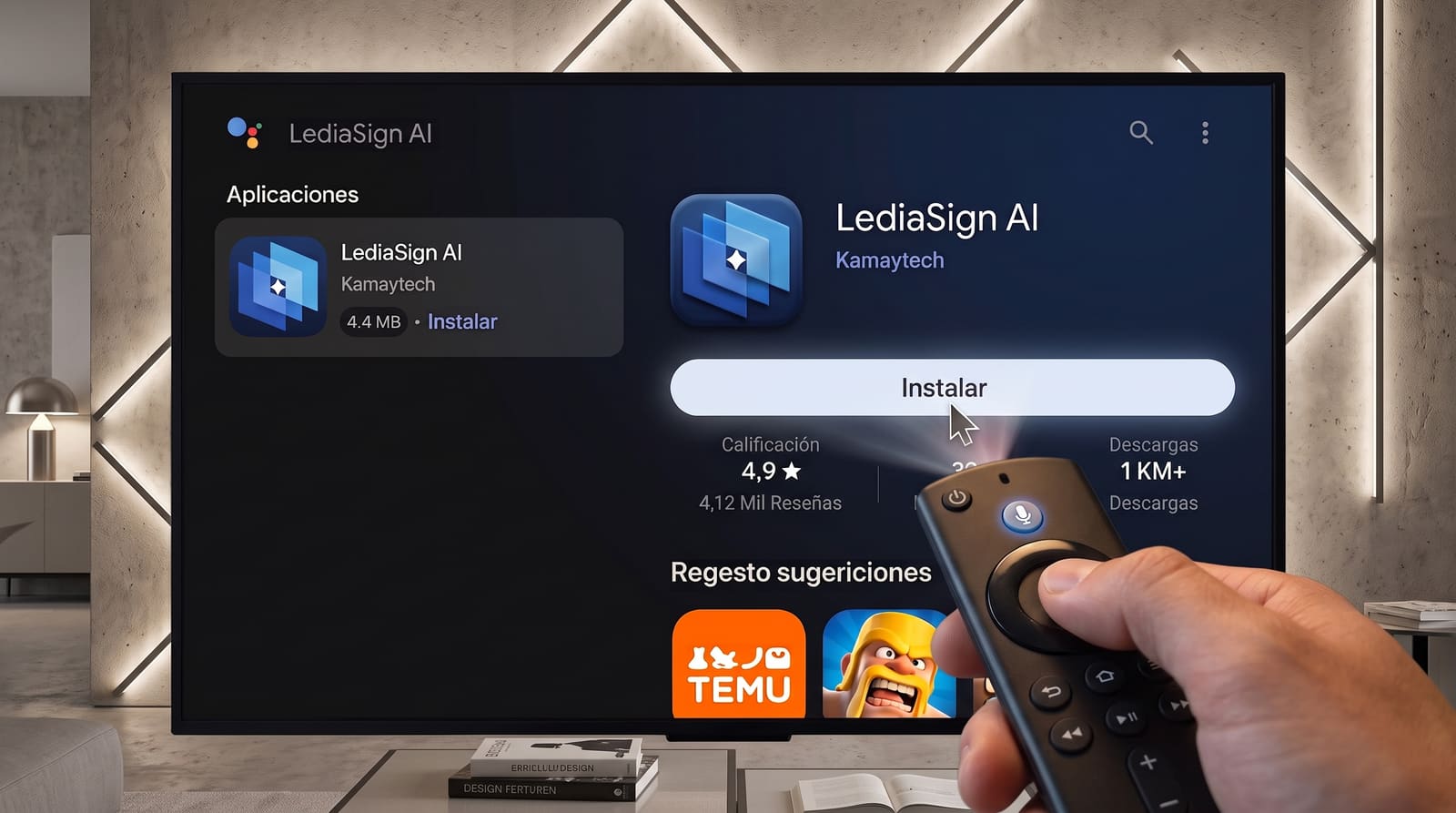
  1. 1Turn on your TV and open the app store (Google Play on Android TV / Google TV).
  2. 2Search for “LediaSign” with the remote.
  3. 3Press “Install” and then “Open”.
Install the app on your Smart TV

Ready when: The app opens and shows a 6-character code on screen.

Tip: Make sure the TV is connected to the internet before opening the app (Settings → Network).

3Step 3

Pair your screen

1 minute · the code connects your TV to your account

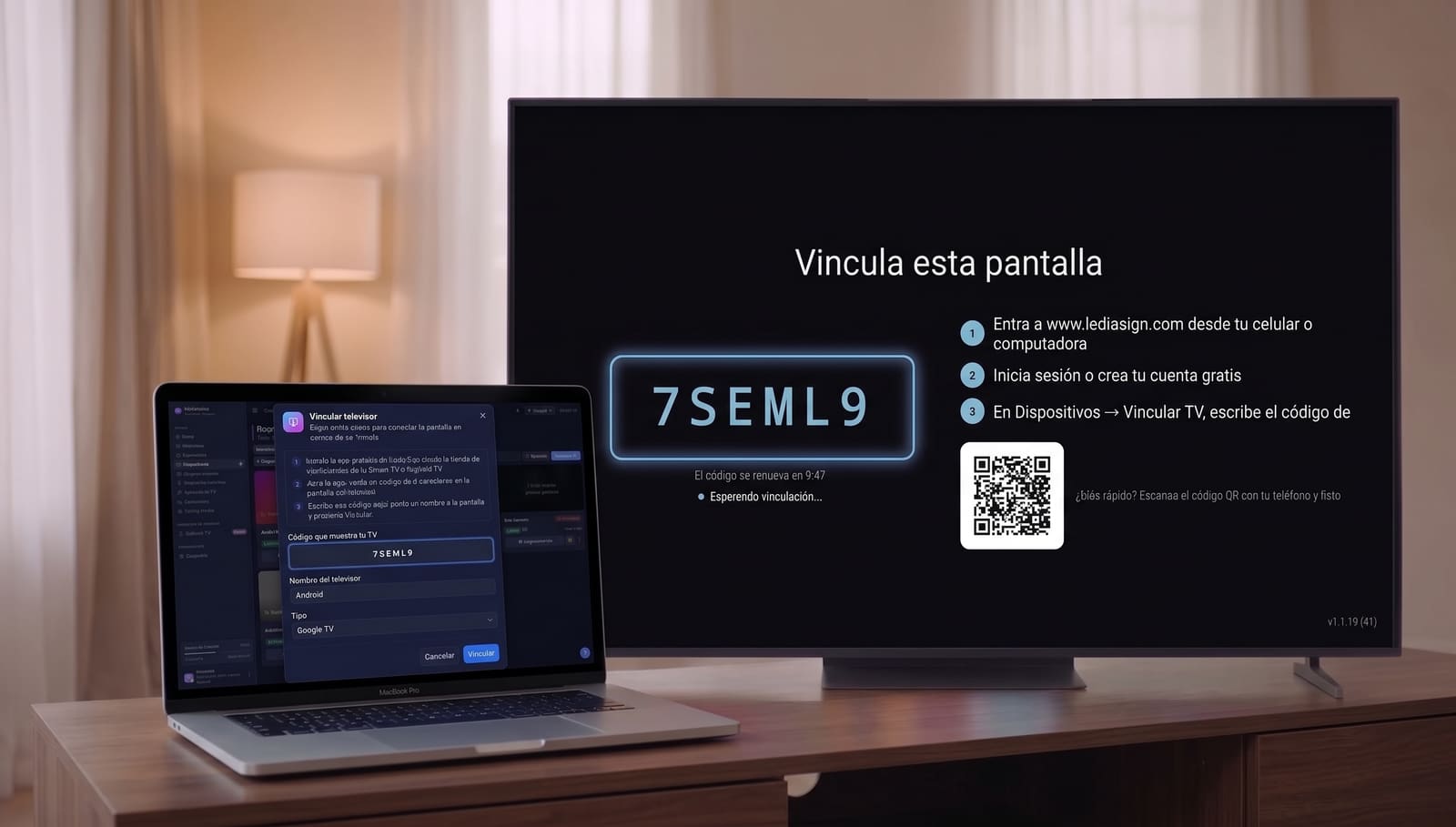
  1. 1Your TV app shows a 6-character code (for example: K7M2PQ).
  2. 2In your dashboard, go to Screens and click “+ Pair screen”.
  3. 3Type the code, give the screen a name (e.g. “Reception TV”) and confirm.
Pair your screen

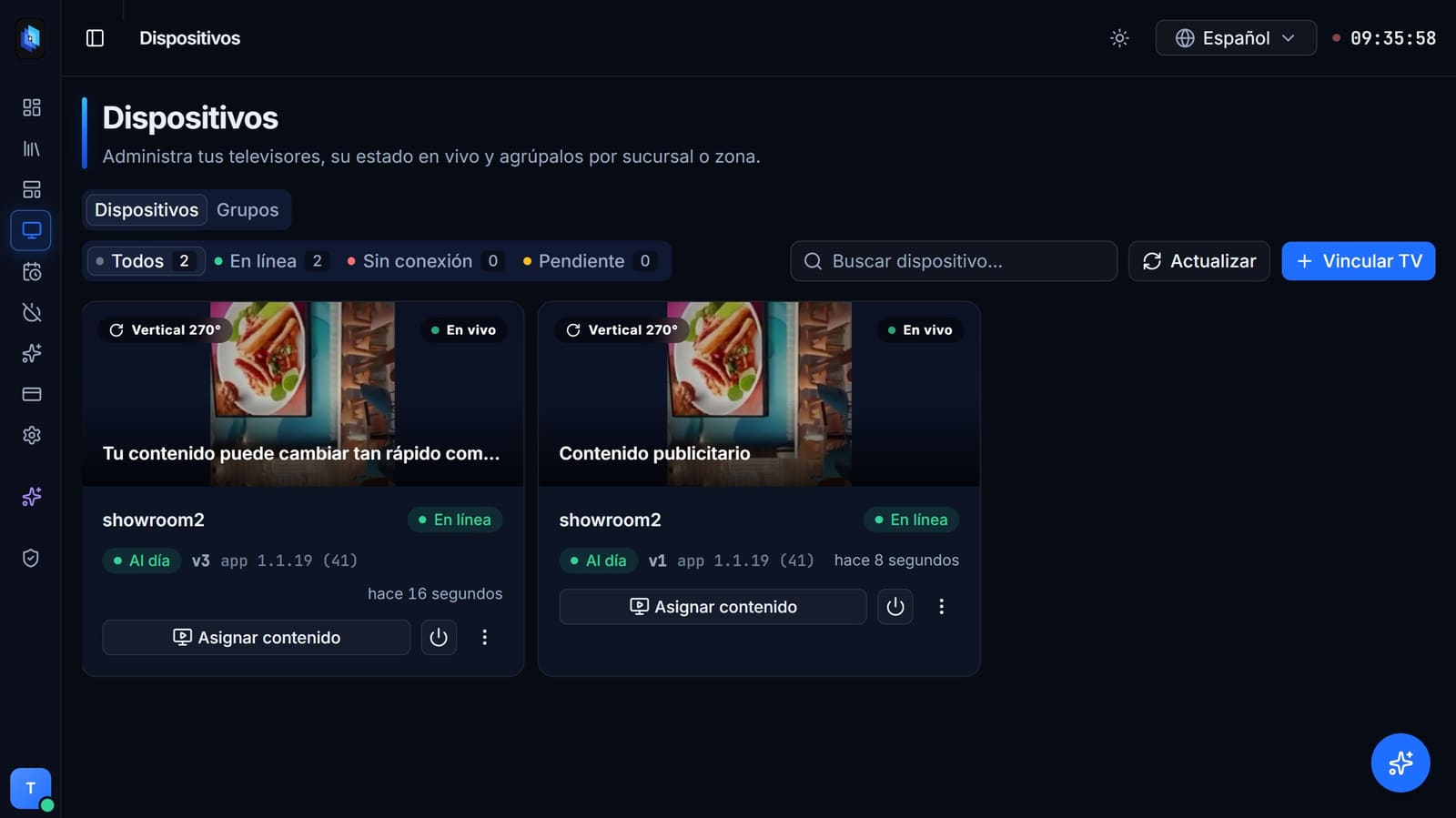
Ready when: The screen appears Online in your Screens list.

Tip: Use names anyone understands: “Checkout TV”, “North Window TV”. You'll thank yourself once you have 20 screens.

4Step 4

Upload your content

2 minutes · images and videos

  1. 1In your dashboard, go to Content and click “Upload files”.
  2. 2Select your images (JPG, PNG) or videos (MP4). You can upload several at once.
  3. 3Wait for them to appear in your library. That's it.
Upload your content

Ready when: You see your files in the library with their thumbnails.

Tip: Use horizontal images at 1920×1080 px (Full HD): it's your TV's format and they'll look perfect.

5Step 5

Build your playlist

3 minutes · the playlist your screen will show

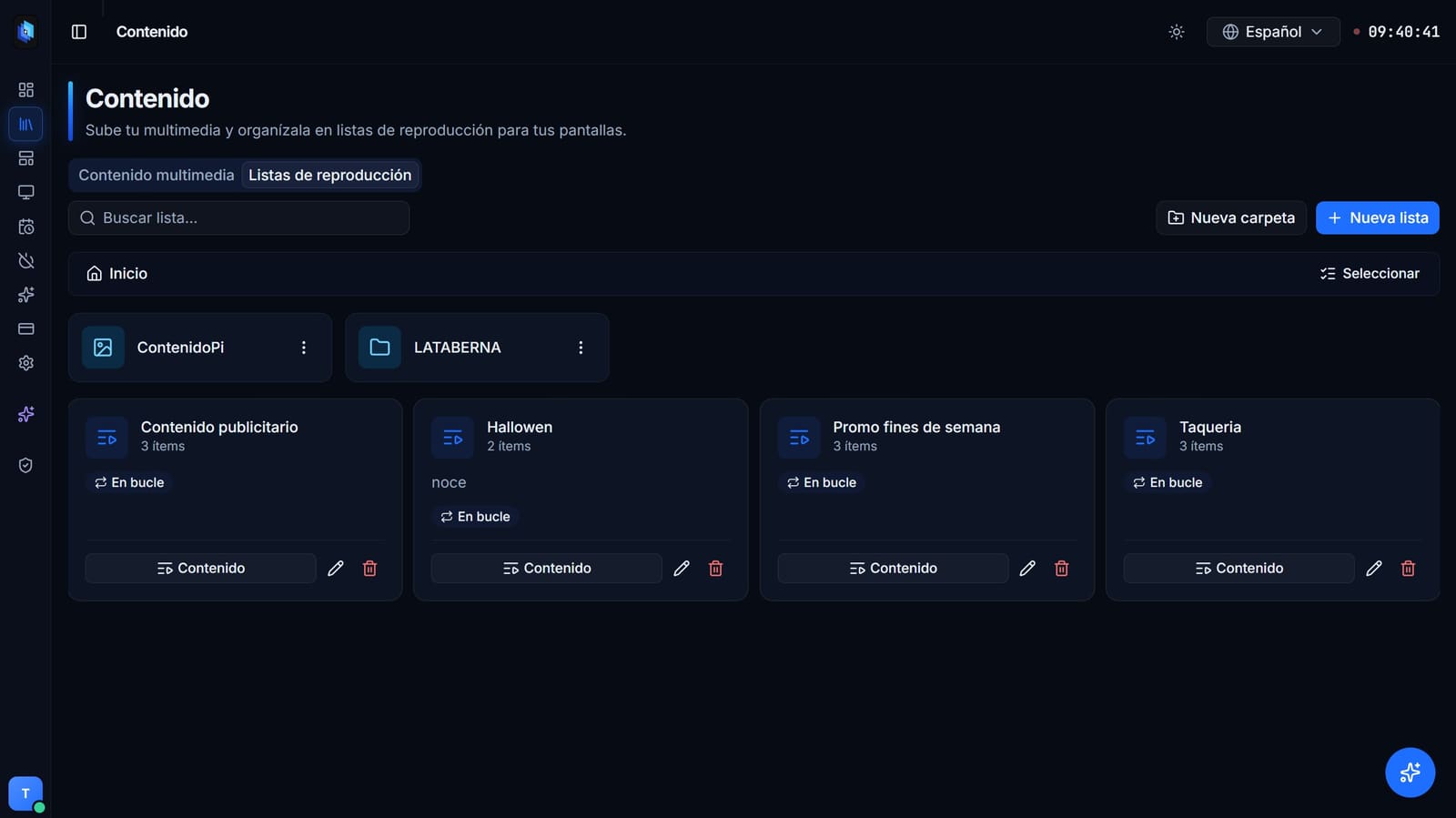
  1. 1Go to Playlists and create a new one (e.g. “Daily promos”).
  2. 2Add content from your library and drag to reorder it.
  3. 3Set how many seconds each image is shown (videos last as long as the file).
  4. 4Press “Save” and assign the playlist to your screen. The TV updates itself, instantly.
Build your playlist

Ready when: Your TV is showing the playlist. Your first screen is live!

Tip: 10–15 seconds per image is ideal. Under 7 isn't enough to read; over 20 gets boring.

6Step 6 · Optional

Schedule by time and day

5 minutes · content changes on its own, following your calendar

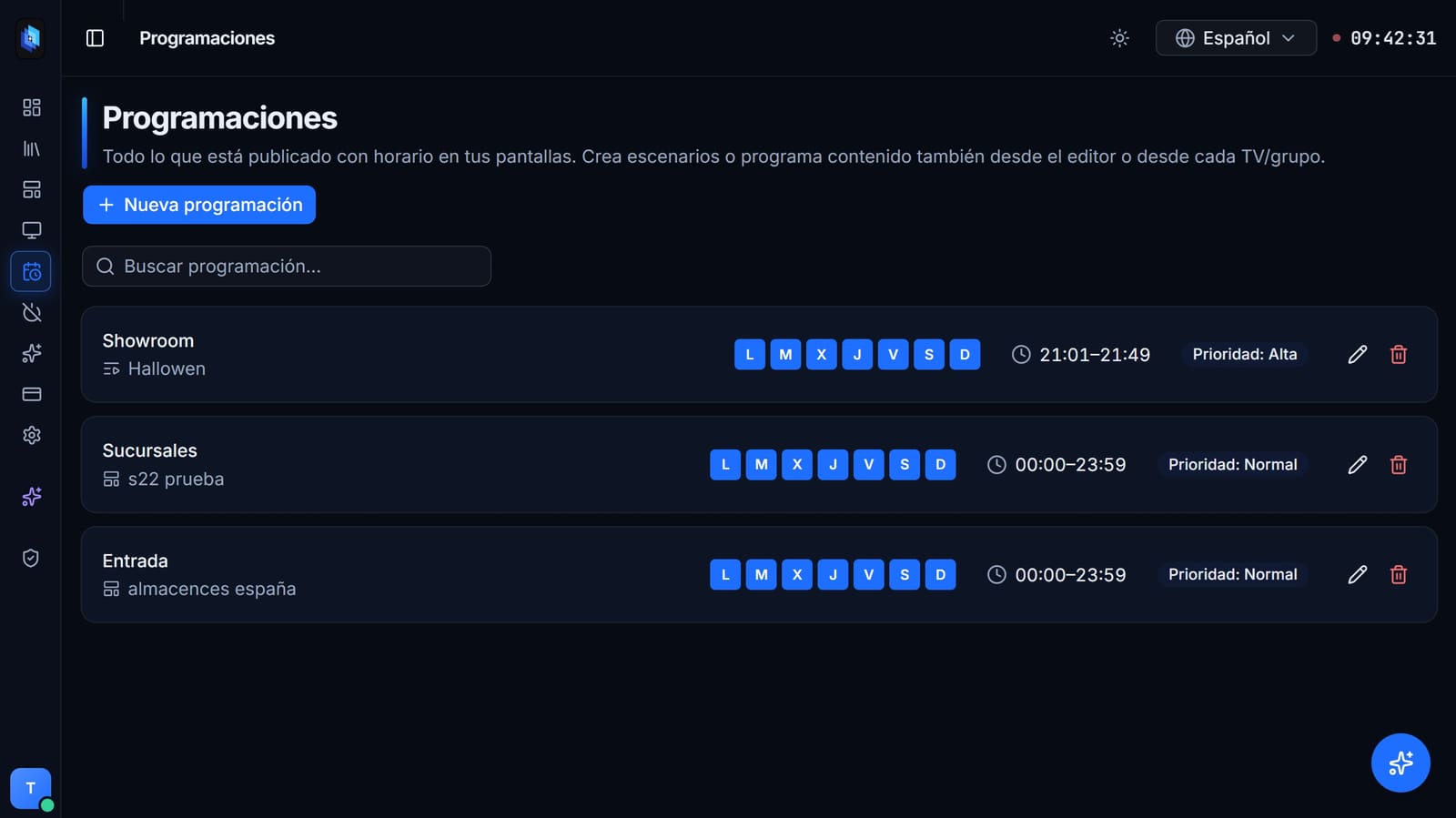
  1. 1Go to Scheduling and click “+ New time slot”.
  2. 2Pick the playlist, the days and the time range (e.g. “Breakfast”, Monday to Friday, 7:00–11:00).
  3. 3Repeat for each slot: breakfast, promos, dinner, weekend…
Schedule by time and day

Ready when: The calendar shows your blocks and the TV switches content on its own at the set time.

Tip: Outside the scheduled blocks, the screen shows your default playlist. That way it's never black.

Your day to day

Monitor everything from Home

Your dashboard tells you, at a glance, whether everything is working.

Real-time status

Each screen shows as Online or Offline, with its last activity.

Groups and branches

Group your screens by location or city and send different content to each group from Screens.

Playback reports

In Reports you confirm what played and when — real proof for your brand or your advertisers.

Open the dashboard from your phone: changing a promo takes less than making a coffee.

Quick help

If something isn't working

The 5 most common cases and their one-minute fix.

The TV shows “Offline”

Check the TV's internet (Settings → Network). Once reconnected, the screen syncs on its own and downloads pending changes.

I can't find the app on my TV

Confirm your TV runs Android TV or Google TV. On other brands (Samsung Tizen, LG webOS) support is coming soon.

The pairing code doesn't appear

Close and reopen the LediaSign app on the TV. The code is generated when you open it with internet active.

I uploaded content and the TV doesn't change

Check that the file is inside the playlist the screen has assigned: uploading to the library doesn't publish it automatically.

I forgot my password

On the sign-in screen, use the password recovery link and follow the instructions in your email.

Need more help? Write to us: the LEDIA Multimedia team supports you through setup, at no extra cost.

Your screens, working for your business.

Free trial · No credit card · Change your plan whenever you want.

Create free account